This guide shows you, step by step, how to turn on document access for a technician and how to view a customer's documents afterwards.
Please note: Technicians can only view documents. Editing or deleting documents is not possible.
TABLE OF CONTENTS
- Part 1: Turn on document access (on your computer)
- Part 2: Sync the app (on your phone)
- Part 3: View a customer's documents (on your phone)
- Part 4: View documents through a workorder (alternative way)
Part 1: Turn on document access (on your computer)
Step 1: Open the web application
Open your internet browser (for example Chrome or Edge) on your computer and log in to the web application.
Step 2: Go to Employees
In the menu, click on Home, then click on Employees.
Step 3: Open the employee's profile
Find the employee who should be able to view customer documents. Click Edit next to their name.
Step 4: Go to Technician settings
In the employee's profile, click on the tab or section called Technician settings.
Step 5: Turn on document access
Check (tick) the box next to "Allow technician to access customer documents".
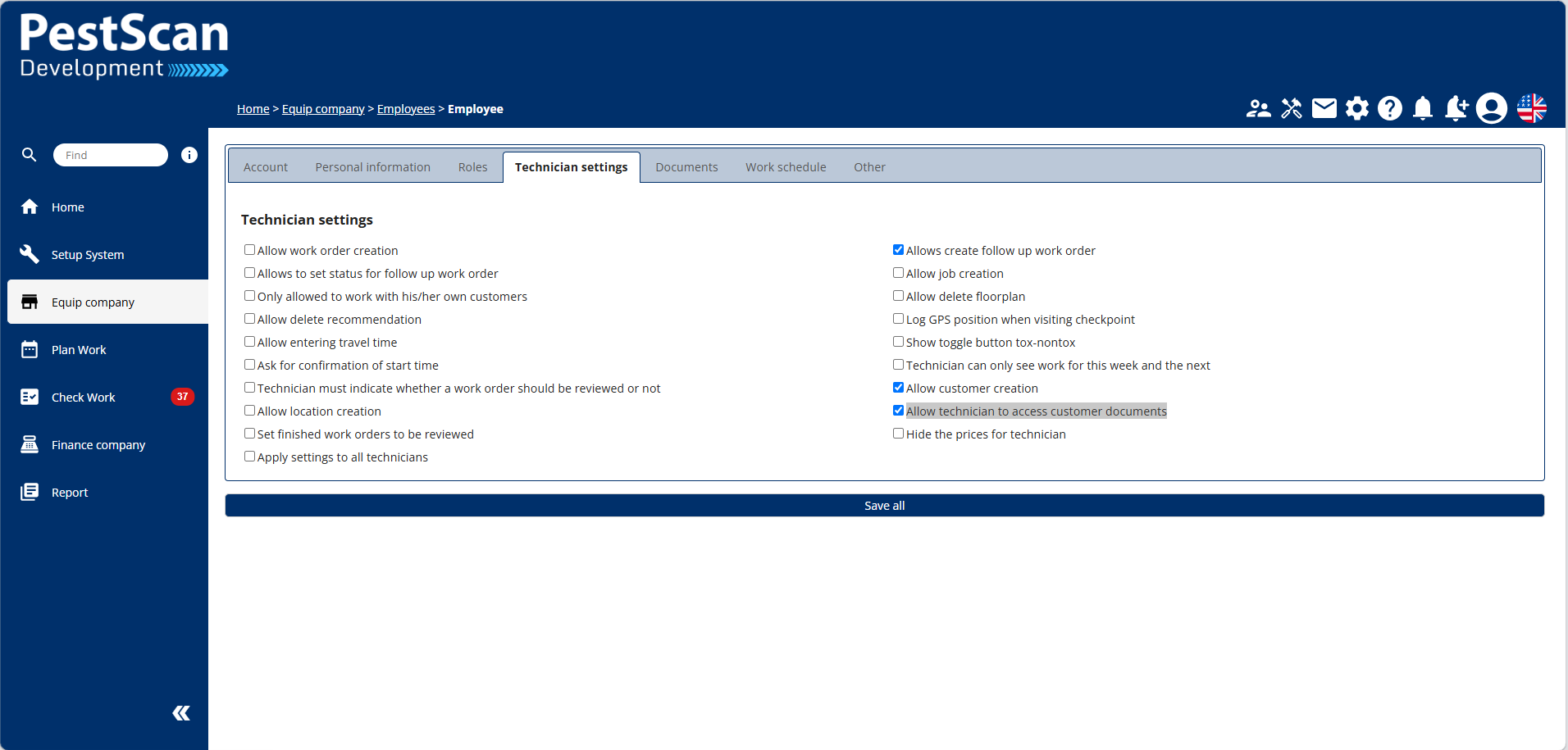
Step 6: Save your changes
Click the Save all button to save your changes.
Part 2: Sync the app (on your phone)
Step 7: Open the app on your phone
On your phone, open the Pestscan app.
Step 8: Sync the app
Tap Sync. This updates the app with the changes you just made.
Step 9: Log out
Tap to log out of the app.
Step 10: Log back in
Log back in with your username and password.
This step is important: the new settings only become active after you log out and log back in.
Part 3: View a customer's documents (on your phone)
Step 11: Go to Customers
In the app, tap on Customers.
Step 12: Find the customer location
Search for the customer location you want to view, and tap on it to select it.
Step 13: Open the location
Tap Open to open the customer location.
Step 14: View the documents
You will now see a button called Documents. Tap on it to view the documents for this location.
Part 4: View documents through a workorder (alternative way)
You can also check a customer's documents through a workorder. Here's how:
Step 15: Open a workorder
Open the workorder you are working on.
Step 16: Go to Customer
Tap on Customer.
Step 17: Go to Documents
Tap on Documents to view the documents for this customer.
✅ Done! You can now view the customer's documents in the app.
Reminder: documents can only be viewed, not edited or deleted.
Was this article helpful?
That’s Great!
Thank you for your feedback
Sorry! We couldn't be helpful
Thank you for your feedback
Feedback sent
We appreciate your effort and will try to fix the article